How to Fix Bluetooth Not Connecting to Car: The Complete Troubleshooting Guide
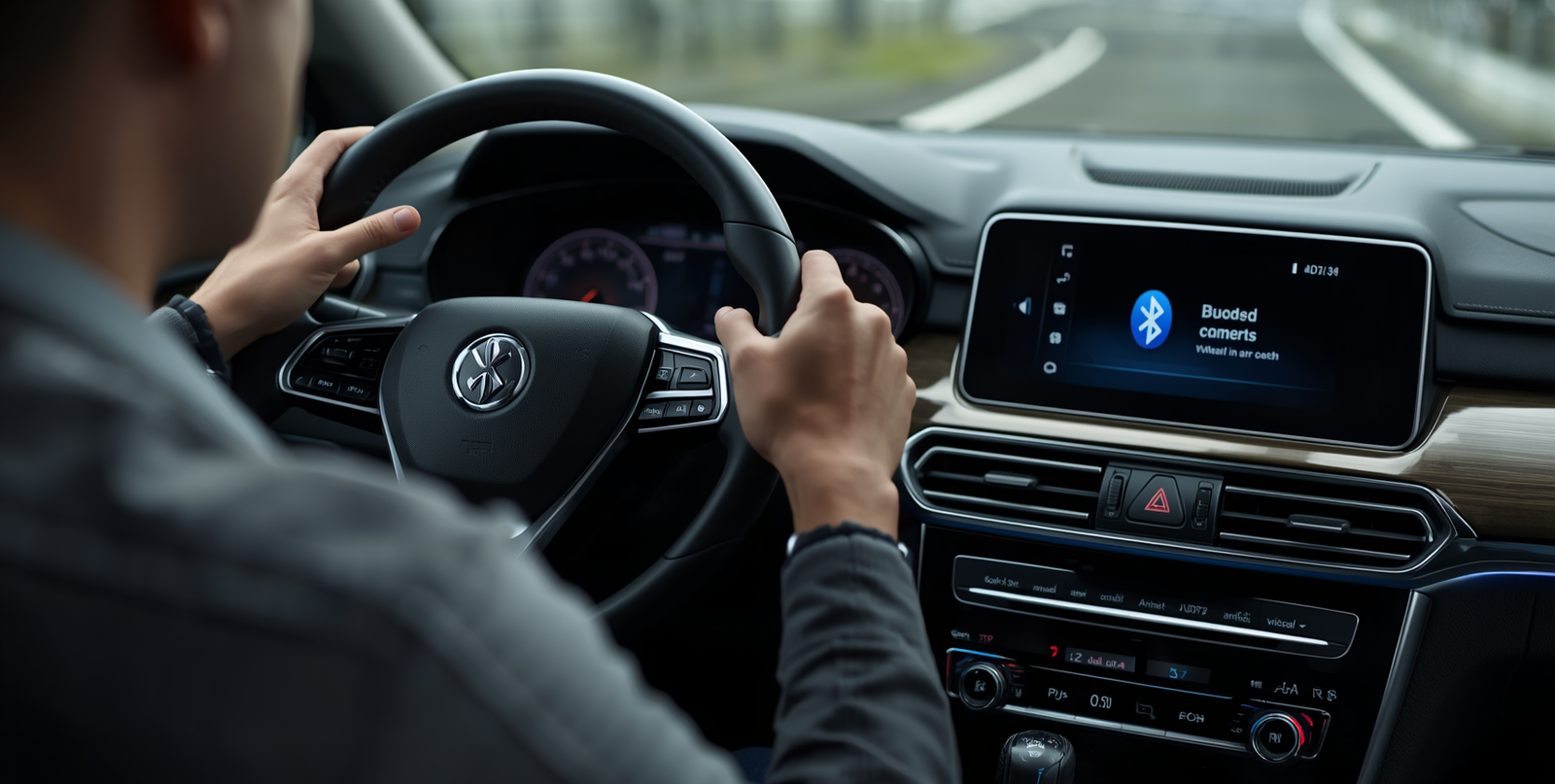
Nothing is more frustrating than jumping into your car, ready to play your favourite playlist, and finding your Bluetooth not connecting to car audio system. This problem is surprisingly common, and fortunately, most causes are easy to fix without visiting a mechanic or technician. Therefore, this complete guide walks you through every possible reason your Bluetooth is failing, and exactly how to solve it. Whether you drive a new model or an older vehicle, these proven troubleshooting steps will get your connection back up and running fast.
What Causes Bluetooth Not Connecting to Car Systems?
Before jumping into solutions, it helps to understand why this problem happens in the first place. Bluetooth connectivity issues between your phone and car stereo can result from several factors:
- Software bugs in your phone or car infotainment system
- Outdated firmware or Bluetooth drivers
- Too many saved devices are causing pairing conflicts
- Physical interference from other wireless signals
- Corrupted pairing data between your phone and car
According to Wikipedia’s Bluetooth article, Bluetooth technology operates on the 2.4 GHz ISM band and is susceptible to interference from other devices using the same frequency, including Wi-Fi routers, microwaves, and other Bluetooth gadgets nearby.
Understanding this helps you diagnose the root cause quickly and apply the right fix on the first try.
Step-by-Step Fixes for Bluetooth Not Connecting to Car
Step 1: Turn Bluetooth Off and Back On
This sounds simple, but it works more often than you think. Therefore, start here before trying anything else.
On your iPhone: Go to Settings → Bluetooth → toggle it off, wait 10 seconds, then toggle it back on.
On Android: Swipe down the notification bar → tap the Bluetooth icon to disable it → wait 10 seconds → tap again to enable.
Additionally, turn your car’s infotainment system off completely, wait 30 seconds, then restart it. This simple reset clears temporary connection errors instantly.
Step 2: Delete the Pairing and Re-Pair From Scratch
Corrupted pairing data is one of the most common reasons for Bluetooth not connecting to car systems. As a result, deleting the saved connection and starting fresh often solves the problem permanently.
On your phone:
Go to Bluetooth settings → find your car’s name in the saved devices list → tap “Forget” or “Unpair.”
On your car:
Navigate to the Bluetooth or phone settings menu in your infotainment system → find your phone’s name → select “Delete” or “Remove Device.”
After clearing both sides, put your car’s Bluetooth into pairing mode and reconnect your phone as if it were a brand-new connection.
Step 3: Restart Both Devices
A full restart clears background processes that may be blocking the Bluetooth signal. Therefore, power off your phone completely, not just lock the screen, and turn it back on. Similarly, switch off your car’s engine, wait one full minute, then restart.
Furthermore, if your car has a dedicated infotainment reset button (usually a small pinhole button on the unit), press it with a paperclip to perform a soft reset.
Step 4: Check for Software and Firmware Updates
Outdated software causes a surprising number of Bluetooth connection failures. Consequently, always keep your devices updated.
For your phone:
- iPhone: Settings → General → Software Update
- Android: Settings → System → Software Update
For your car’s infotainment system:
Check your vehicle manufacturer’s official website or contact your dealership. Many modern cars including Toyota, Honda, Ford, and GM vehicles, release over-the-air (OTA) infotainment updates that fix known Bluetooth bugs.
Moreover, if you use a third-party Bluetooth adapter or car kit, check the manufacturer’s app for firmware updates as well.
Step 5: Clear Bluetooth Cache (Android Only)
Android devices store Bluetooth connection data in a cache. Over time, this cache becomes corrupted and blocks new connections. Therefore, clearing it often resolves persistent pairing problems.
Go to Settings → Apps → Show System Apps → search for “Bluetooth” → tap Storage → tap “Clear Cache.”
Restart your phone afterwards and try connecting to your car again.
Step 6: Remove Extra Paired Devices
Most car Bluetooth systems can only store a limited number of paired phones, typically between 5 and 10 devices. When the memory is full, the system struggles to connect or drops existing connections.
Therefore, go into your car’s Bluetooth settings and delete any old devices you no longer use. Keep only the phones that actively connect to your car. Additionally, remove your car from your phone’s list of saved Bluetooth devices and re-pair it cleanly.
Step 7: Disable Battery Saver and Aeroplane Mode
Battery saver mode on both iPhones and Android phones can throttle Bluetooth performance significantly. As a result, your phone may not maintain a stable connection to your car.
Turn off battery saver mode before attempting to pair. Furthermore, double-check that aeroplane mode is completely disabled, since aeroplane mode cuts all wireless signals, including Bluetooth.
Step 8: Check for Wireless Interference
As mentioned, Bluetooth operates on the 2.4 GHz frequency band. Other devices in the same range, including Wi-Fi hotspots, other phones, and even some USB 3.0 devices, can cause interference.
Therefore, try connecting in a location away from crowded wireless environments. Additionally, if you have multiple Bluetooth devices active nearby (headphones, smartwatch, laptop), turn them off temporarily and test the car connection alone.
Bluetooth Not Connecting to Car iPhone: Specific Fixes
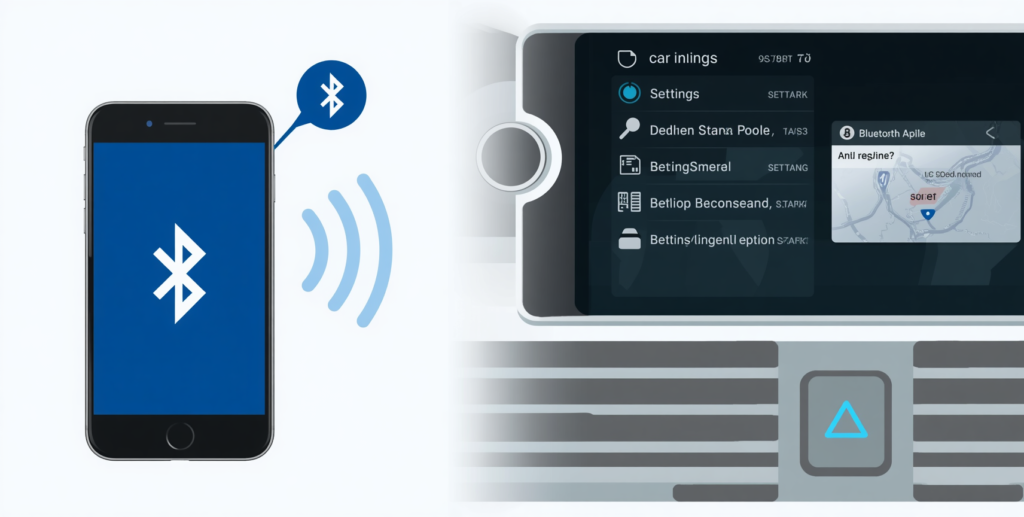
iPhone users often face unique Bluetooth challenges due to iOS updates and Apple’s strict wireless management. Here are iPhone-specific fixes:
Reset Network Settings on iPhone
Go to Settings → General → Transfer or Reset iPhone → Reset → Reset Network Settings.
This clears all saved Wi-Fi passwords and Bluetooth pairings. Therefore, use this as a last resort, since you will need to reconnect to all saved networks afterwards. However, it solves deep-rooted connection conflicts effectively.
Check Location Services
Surprisingly, some iOS versions require location services to be enabled for Bluetooth to function correctly with car systems. Go to Settings → Privacy & Security → Location Services and ensure it is turned on.
Disable Automatic Switching (AirPods Users)
If you use AirPods, iOS has a feature that automatically switches audio between Apple devices. This feature sometimes hijacks your car’s Bluetooth connection. Therefore, go to your AirPods settings → Automatic Ear Detection → disable it while driving.
Bluetooth Not Connecting to Car Android: Specific Fixes
Use Developer Options to Reset Bluetooth
On Android, enabling Developer Options gives you access to advanced Bluetooth reset tools.
Go to Settings → About Phone → tap “Build Number” seven times to unlock Developer Options. Then go to Developer Options → scroll to “Bluetooth” section → disable and re-enable Bluetooth AVRCP version settings.
Try a Different Bluetooth Profile
Android supports multiple Bluetooth profiles, including A2DP (for audio), HFP (for calls), and PBAP (for contacts). If the wrong profile is active, audio may not route through your car correctly. Therefore, in Developer Options, check the Bluetooth Audio Codec and AVRCP version settings and adjust them to match your car’s compatibility requirements.
Why Does My Car Bluetooth Keep Disconnecting?
Even after a successful pairing, many drivers face repeated disconnections. This ongoing issue usually points to one of these causes:
Weak Bluetooth signal range. Although Bluetooth works within approximately 30 feet, physical barriers like thick metal car panels can reduce effective range near door edges.
Phone battery management. Some phones automatically disconnect Bluetooth when the battery drops below 20 per cent. Therefore, keep your phone charged while driving.
Infotainment system glitches. Older car systems with outdated firmware drop connections more frequently. Consequently, a firmware update from your manufacturer resolves most ongoing disconnection problems.
App conflicts. Music streaming apps like Spotify, Apple Music, and YouTube Music sometimes conflict with Bluetooth audio routing. Therefore, force-close background apps and test with one app at a time.
When to Seek Professional Help
If none of the above steps fix your Bluetooth not connecting to car issue, the problem may be hardware-related. In that case, consider the following options:
Visit your car dealership. Many dealerships perform free software diagnostics and infotainment updates during service appointments.
Contact your phone manufacturer. If the problem occurs only with your car and not other Bluetooth devices, your phone’s Bluetooth antenna may be damaged.
Replace the car’s Bluetooth module. Older vehicles with aftermarket Bluetooth adapters may need a new unit. Modern replacements from brands like Anker, Mpow, and Avantree offer better compatibility and stronger signal strength.
Check for recall notices. Some car manufacturers have issued technical service bulletins (TSBs) specifically addressing Bluetooth connectivity issues. Check the NHTSA database at nhtsa.gov for your vehicle make and model.
How to Prevent Bluetooth Connection Problems in the Future
Prevention is always better than troubleshooting. Therefore, follow these habits to maintain a stable Bluetooth connection between your phone and car:
Keep your devices updated. Install phone software updates promptly and check for car firmware updates every six months.
Limit saved Bluetooth devices. Remove devices you no longer use from both your phone and car regularly.
Restart your phone weekly. A simple weekly restart clears cache and background processes that build up over time.
Avoid extreme temperatures. Very hot or very cold conditions affect Bluetooth hardware performance in both phones and car systems.
Use quality Bluetooth accessories. If you rely on a Bluetooth adapter rather than a built-in car system, invest in a reputable brand with strong customer reviews.